
Documentation › Printers › Managing printers
Managing printers
Declare and organise every output in Resources › Printers.
Printer types
| Type | Use |
|---|---|
| THT — thermal, TCP/IP | A network thermal printer reached at host:port (usually 9100), printing native ZPL/DPL/Fingerprint/JScript. |
| WINDOWS — system printer | A Windows/CUPS print queue reachable from the server. |
| Generate a PDF of each label into a folder (archiving, proofs). | |
| FILE | Write the raw printer commands into a folder. |
Add a printer
- Click Add a printer. Set the alias — the name used in your data (
@PRINTER_NAME), which takes priority over the real name. - Choose the connection (type and address/queue/folder).
- On the Driver tab, pick the model, language, DPI and media size (see Drivers & languages).
- Optionally set an access group to restrict visibility to certain profiles.
- Save, then enable the printer.
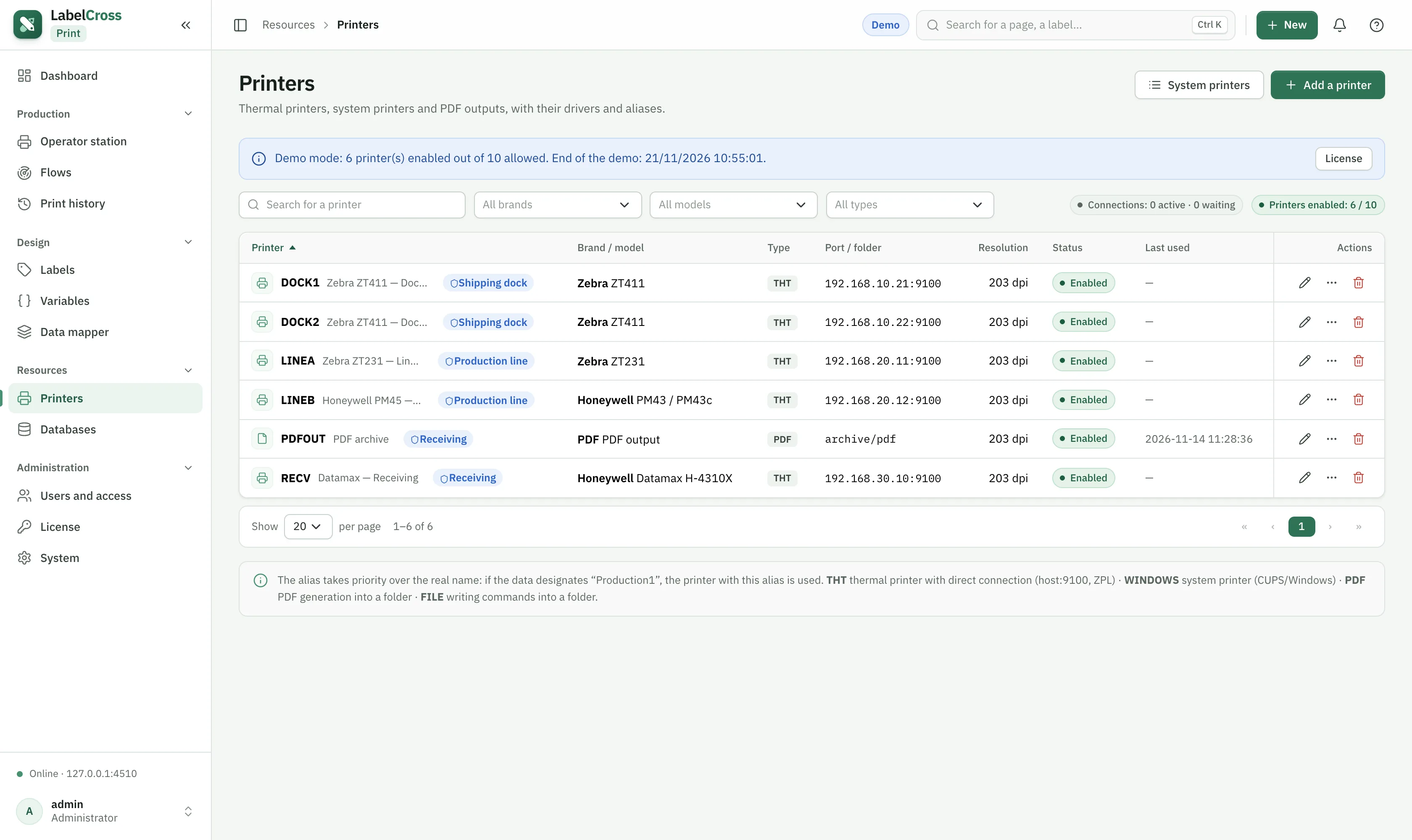
Access groups (printer RBAC)
Give each printer a group (e.g. Line 1, Shipping dock). In a profile, allow all printers or only certain groups; users then see and use only those printers everywhere. A printer without a group stays reserved for “all printers” profiles.
⚠︎
Adding or re-enabling a printer requires an active license, and counts against your license’s printer limit.