
Server requirements
What the machine that hosts LabelCross Print needs. The application runs on your own server; your data and prints never leave your network.
R1Hardware & operating system›
| Operating system | Windows Server 2016/2019/2022, or Windows 10/11 (64-bit). Also runs on Linux (x64/ARM64) as a Java service. The provided .exe installer targets Windows. |
| CPU | 2 cores minimum, 4 cores recommended (x64 or ARM64). |
| Memory (RAM) | 2 GB minimum, 4 GB recommended (more for many concurrent flows/printers). |
| Disk space | ~1 GB for the application; plan several GB extra for the encrypted database, logs and print archives. |
| Java runtime | None to install: the Windows installer embeds its own Java runtime. For the plain .jar, Java 21 or later is required. |
| System clock | Must be accurate and not set backwards — the license check refuses a clock moved into the past. |
R2Network & ports›
| Web interface | Inbound TCP on the web port (default 4505, configurable at install) — reachable by the browsers and operator stations. A firewall rule is added by the installer. |
| Printers | Outbound to each network printer, usually TCP 9100 (RAW), on the local network. System printers must be reachable from the server (Windows/CUPS queue). |
| License server | Outbound HTTPS to the LabelCross license server, for activation and periodic renewal. Offline operation is tolerated between checks. |
| Flow sources (optional) | Depending on your flows: a watched folder, inbound HTTP (REST), an inbound TCP port, SFTP, or access to a database (JDBC). |
| Reverse proxy (optional) | HTTPS is typically terminated by a reverse proxy (e.g. nginx) in front of the server. |
R3Permissions & clients›
- Install rights: administrator privileges are required to install the Windows service and add the firewall rule.
- Service account: the service needs access to the watched folders, printers and databases used by your flows.
- Client browsers: a recent browser (Chrome, Edge, Firefox) on the operator and admin workstations — nothing to install on the clients.
Getting started
First sign-in and basics.
Q1How do I sign in the first time?›
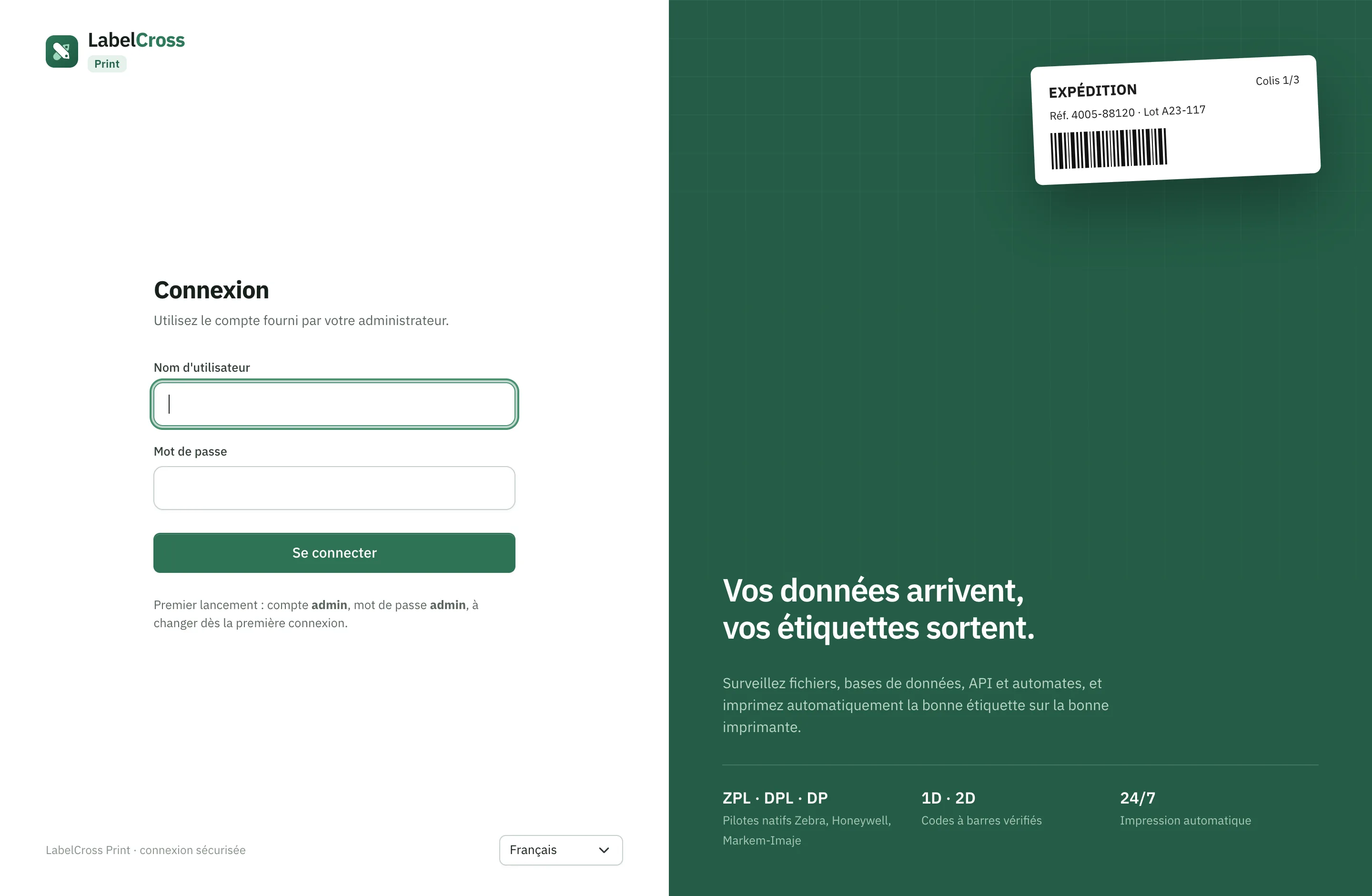
- Open http://<server>:4505/ in a browser.
- Username admin, password admin.
- The app immediately asks for a new password: choose one with at least 8 characters (a letter and a digit).
- Pick the interface language, then you land on the dashboard.
Q2How do I change the interface language?›
- Click your account at the bottom-left, then Choose language.
- Select one of the 8 languages. The change is instant.
Each user keeps their own language.
Printers
Declare, configure and test your printers.
Q3How do I add a printer?›
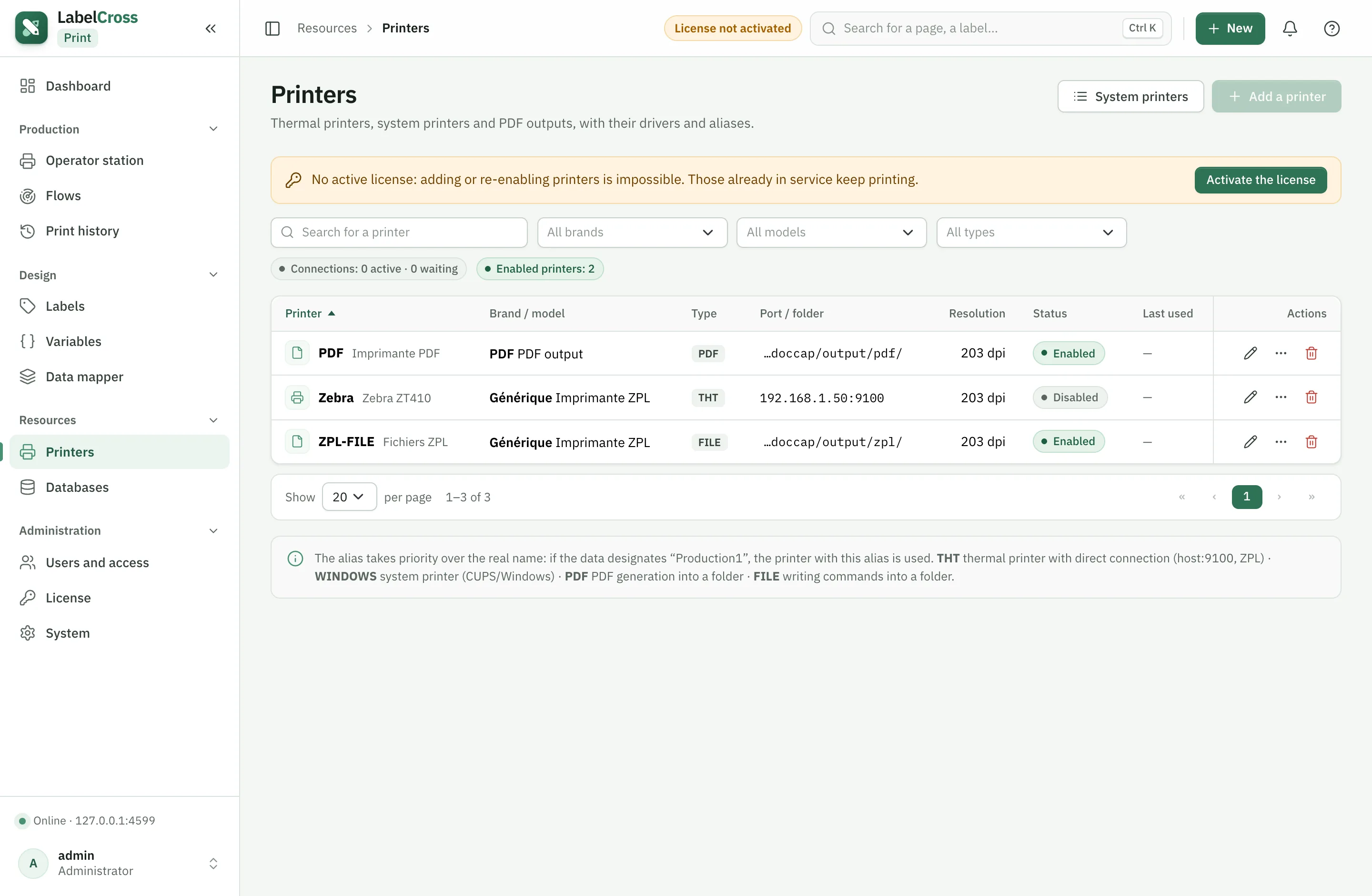
- Go to Resources › Printers then Add a printer.
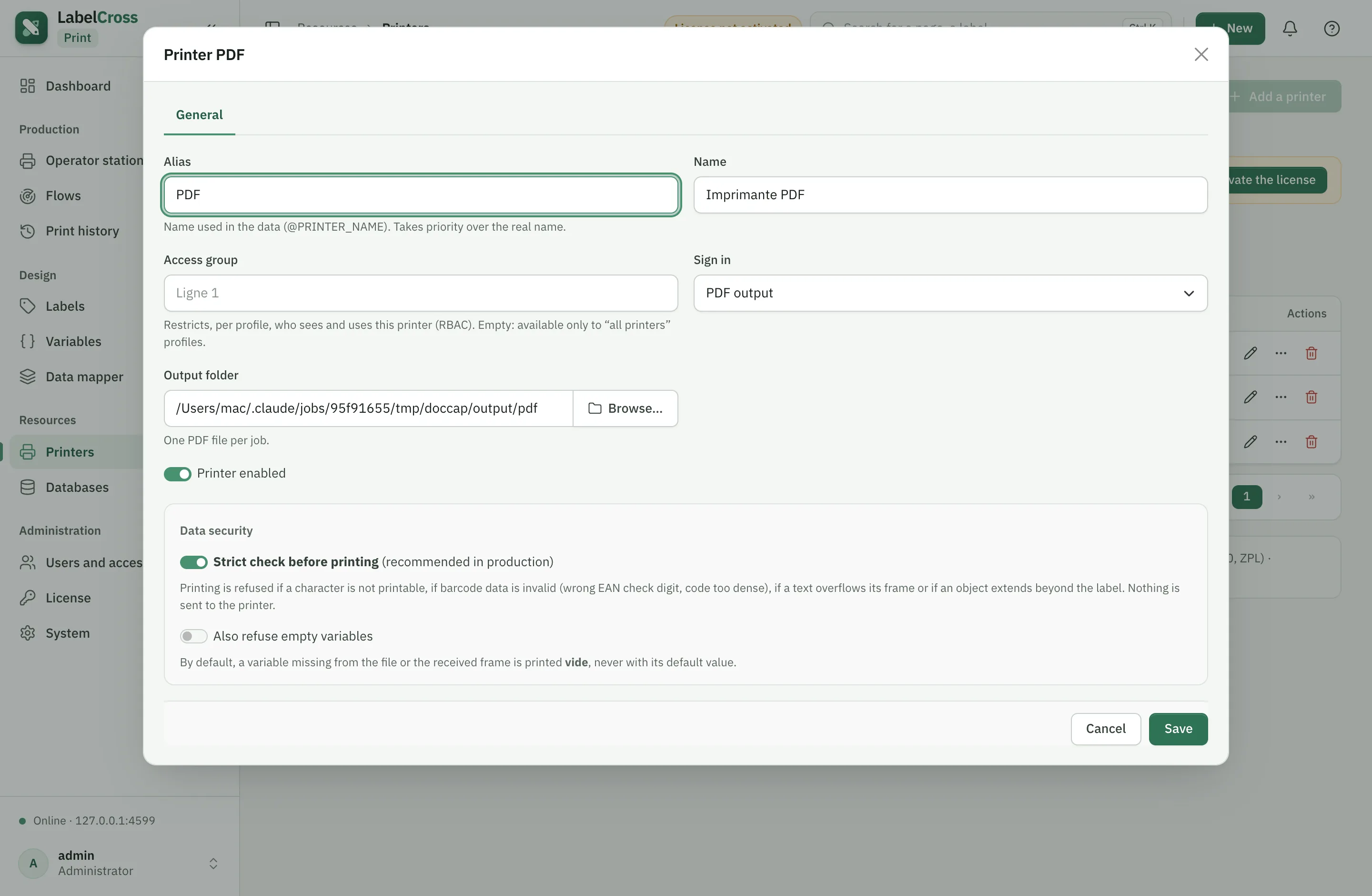
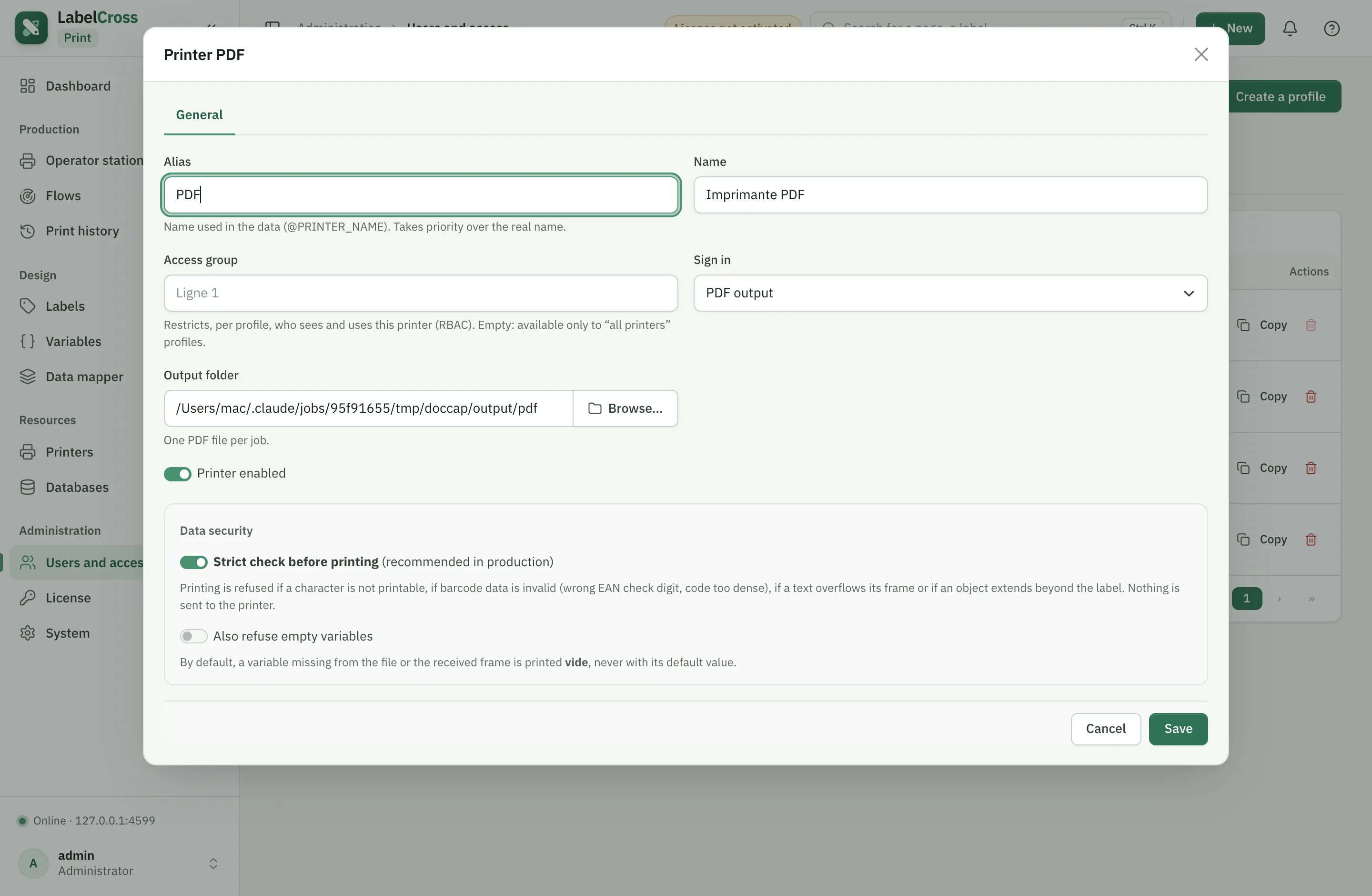
- Alias: the name used in your data (@PRINTER_NAME), which takes priority over the real name.
- Connection: pick the type —
- Thermal TCP/IP (ZPL, DPL, Fingerprint, JScript): enter host:port (e.g. 192.168.1.50:9100).
- System printer: the Windows/CUPS queue name.
- PDF or File: an output folder.
- Driver tab: select the brand/model and language (ZPL, DPL…), the DPI (203/300/600) and, if needed, the media dimensions.
- (Optional) Access group: restricts which profiles can see this printer (see Q13).
- Save, then enable it with the Printer enabled switch.
Q4How do I configure the driver (language, speed, darkness, media)?›
- Open the printer, Driver tab then Media & printing.
- Set the language, the media type (direct thermal / transfer), the darkness, the speed and the dimensions (width/height in mm).
- Use Offsets to correct alignment (X/Y offset, tear-off).
- Send the configuration with Send configuration, or run a sensor Calibration.
Q5How do I test a printer?›
- In the printer list, the row’s … menu, Test label (or the test button in the editor).
- A built-in label (frame, accented text, Code 128, QR, DataMatrix) is sent at the driver’s media size.
- For Fingerprint/DPL printers, use Image method diagnostic: one label per method, titled “METHOD n”, to keep the one that renders identically.
Flows
Automate printing from a data source.
Q6How do I create an automatic flow?›
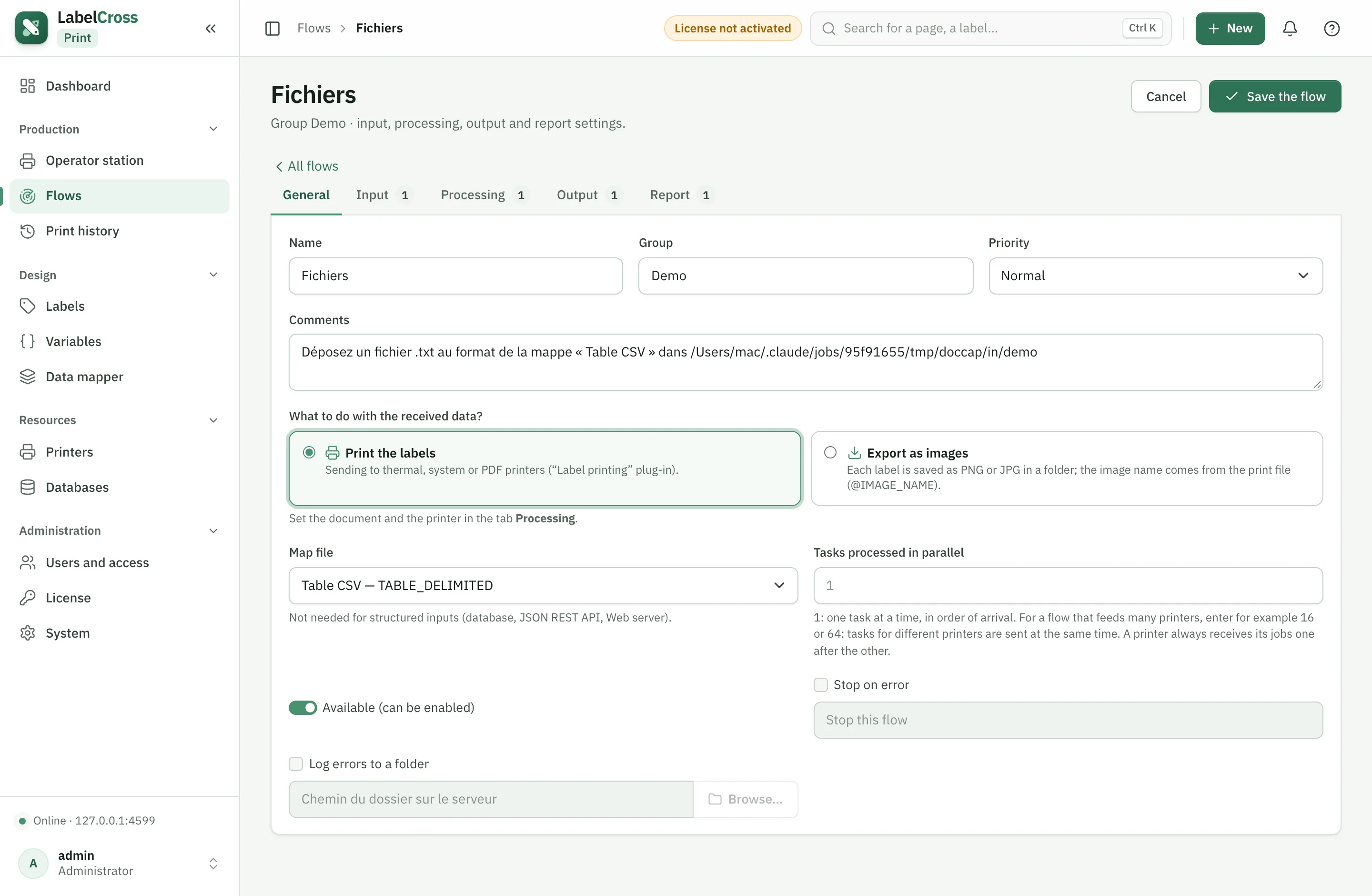
- Go to Production › Flows then New flow.
- General tab: name the flow, choose Print labels and the map format if the input is structured.
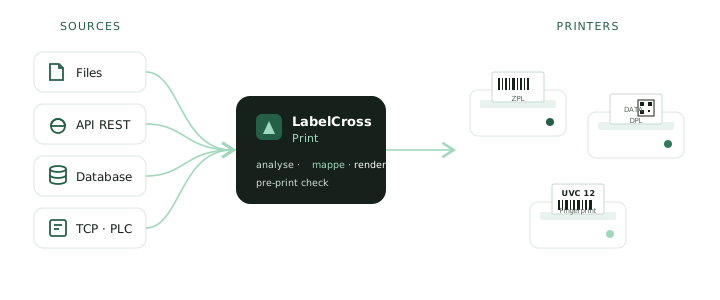
- Input tab: choose the channel —
- File capture: a watched folder + file mask.
- Web server (REST API): an HTTP endpoint.
- TCP/IP: a listening port.
- Database: a polling query.
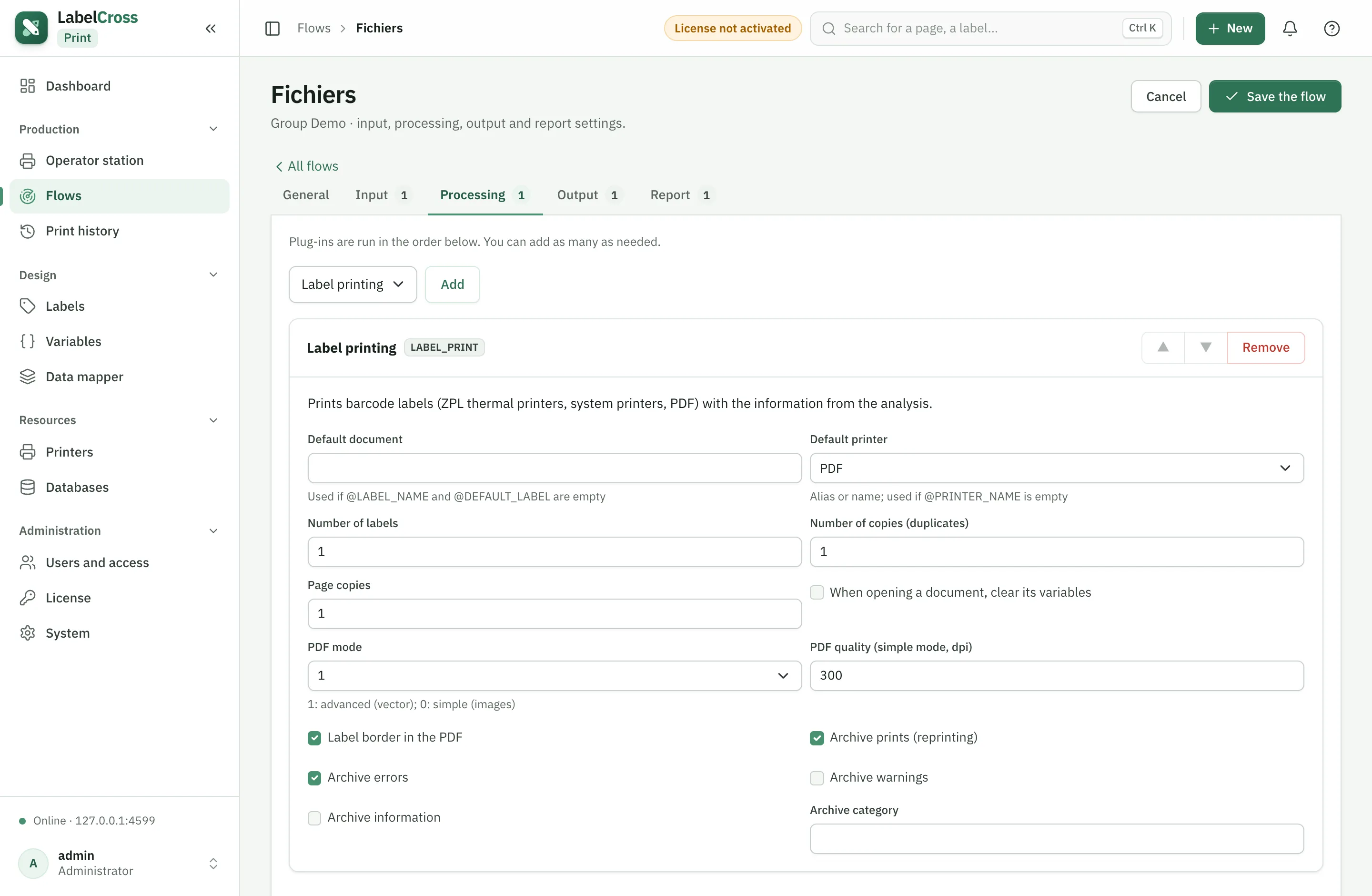
- Processing tab: the Label printing plug-in — set the default document, the default printer (searchable dropdown), the quantity and the send format.
- Output / Report tabs: archiving and reporting options.
- Save, then Start the flow. Drop a test message into the source to verify.
Q7How do I map incoming data to label variables?›
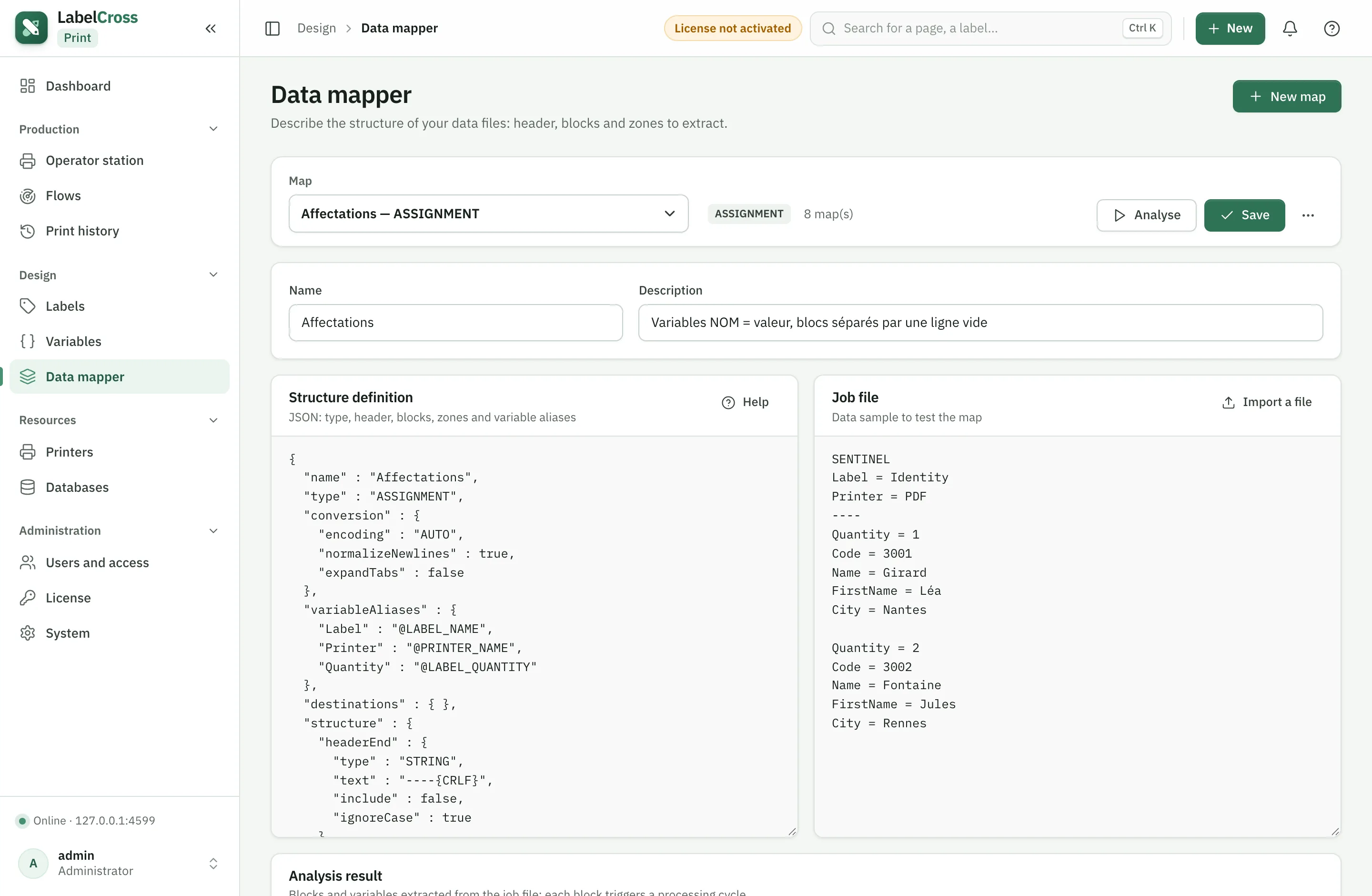
- Go to Design › Data mapper and create a map.
- Choose the source format: CSV, fixed-width, JSON, or table (database).
- Map each source field to a variable name used in the label (e.g. REF, LOT, RECIPIENT).
- Test with Test analysis by pasting a data sample.
- In the flow (General tab), select this map as the map file.
Labels
Design, version and manage the library.
Q8How do I design a label?›
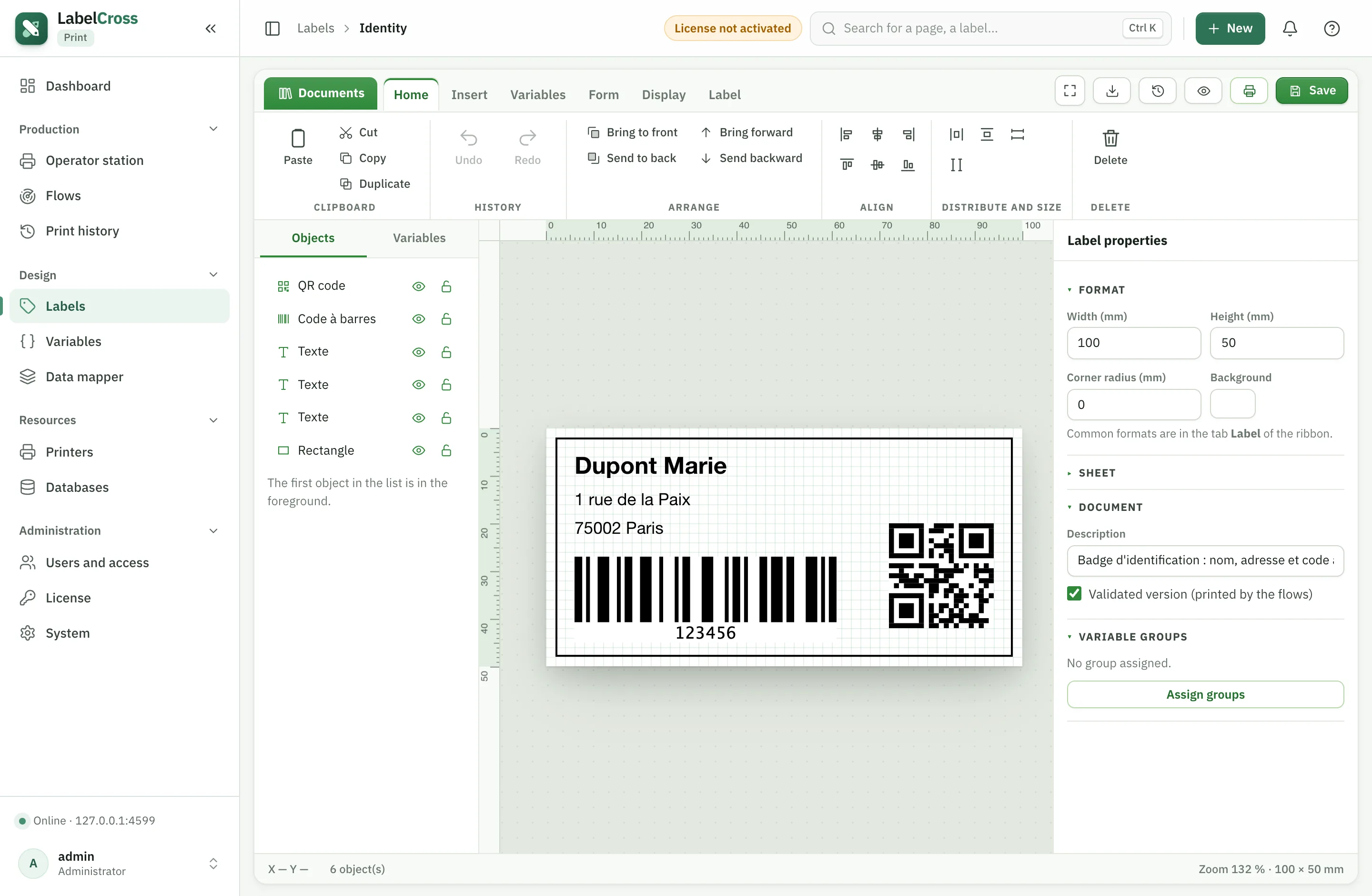
- Go to Design › Labels then New label (graphical layout).
- Add objects from the toolbar: text, barcode, QR/DataMatrix, image, shapes.
- For a variable field, enter the value as {{VARIABLE}}: it is replaced at print time.
- Set position (X/Y), size, font and color in the Properties panel.
- Save. Tick Validated version so it prints by priority.
- Check the result with PDF preview.
Q9How do I group and filter labels?›
- On creation, fill the Group field (e.g. Parcel, UVC, Pallet).
- On an existing label: … menu › Change group.
- An All groups filter appears in the toolbar to show a single group.
Q10How do I delete a label and restore it (trash)?›
- A label’s … menu › Move to trash (reversible deletion, removed from the library and from operators).
- To restore: the Trash button at the top of the Labels page, then Restore on the label.
- To delete permanently: in the trash, the delete button (type the name to confirm).
- Set the automatic purge (3, 7, 10, 30, 60, 90 days or Never) with the trash selector.
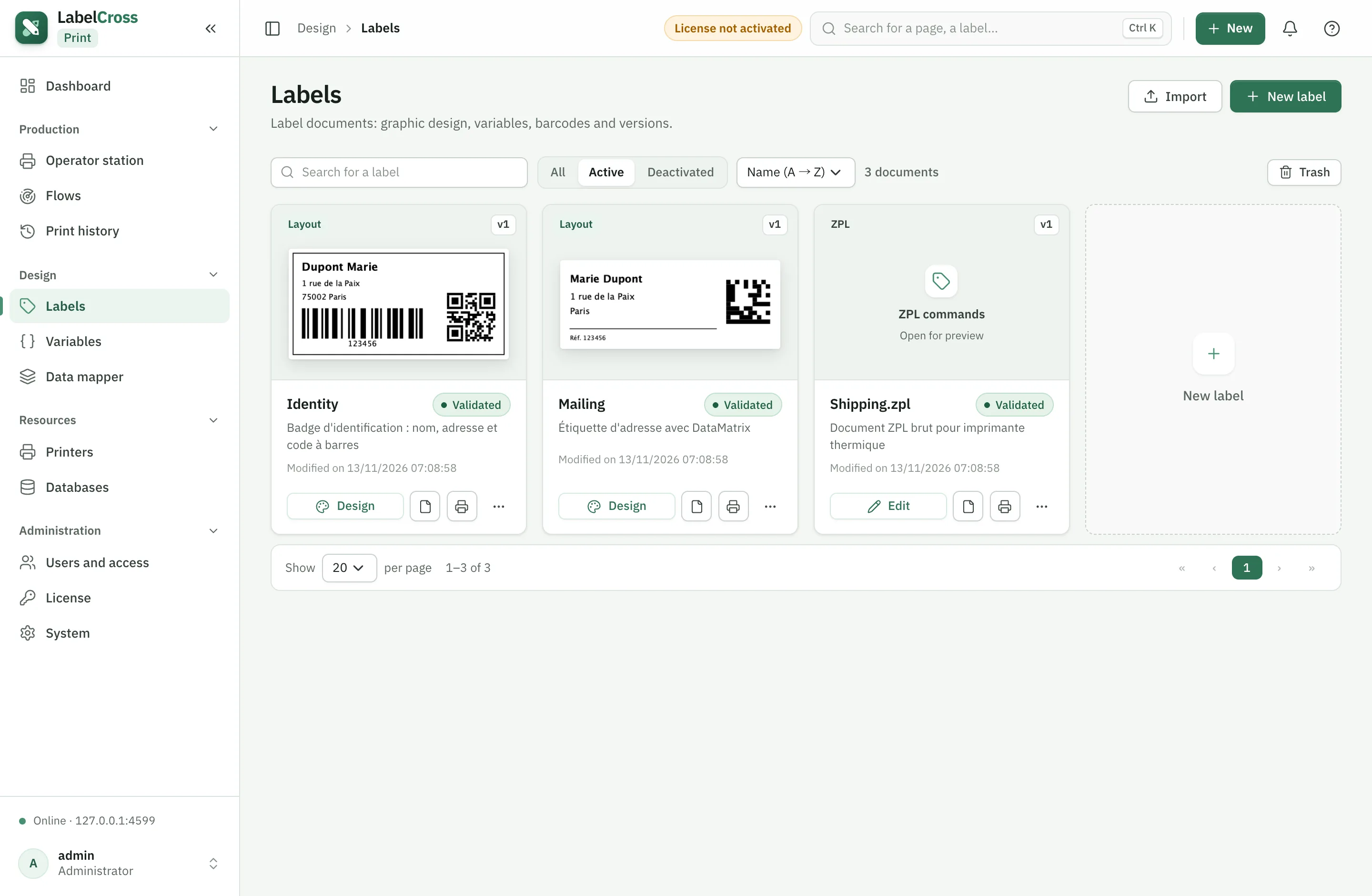
Operator station
Print manually from a label.
Q11How do I print from the operator station?›
- Go to Production › Operator station.
- Pick a label in the list (only enabled labels appear).
- Enter the requested variables; the preview updates live.
- Pick the printer and the quantity, then Print.
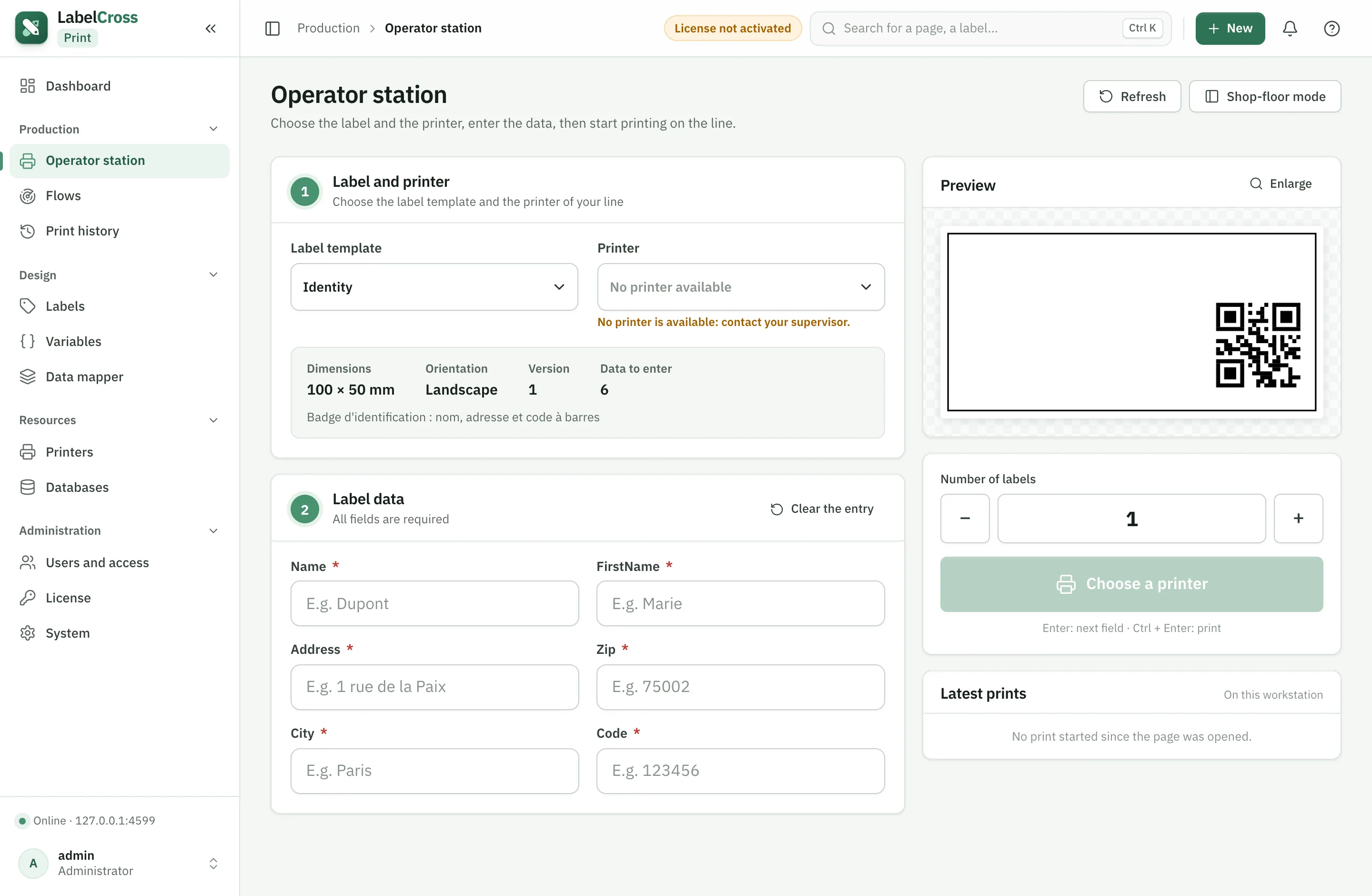
Users & security
Accounts, permission profiles (RBAC) and printer access.
Q12How do I create a user and assign permissions?›
- Go to Administration › Users and access.
- Profiles tab: create a profile (e.g. “Operator”) and tick the permissions you want, per module.
- Users tab: Create a user, fill username, name, a temporary password, and assign one or more profiles.
- The user will change their password at first sign-in.
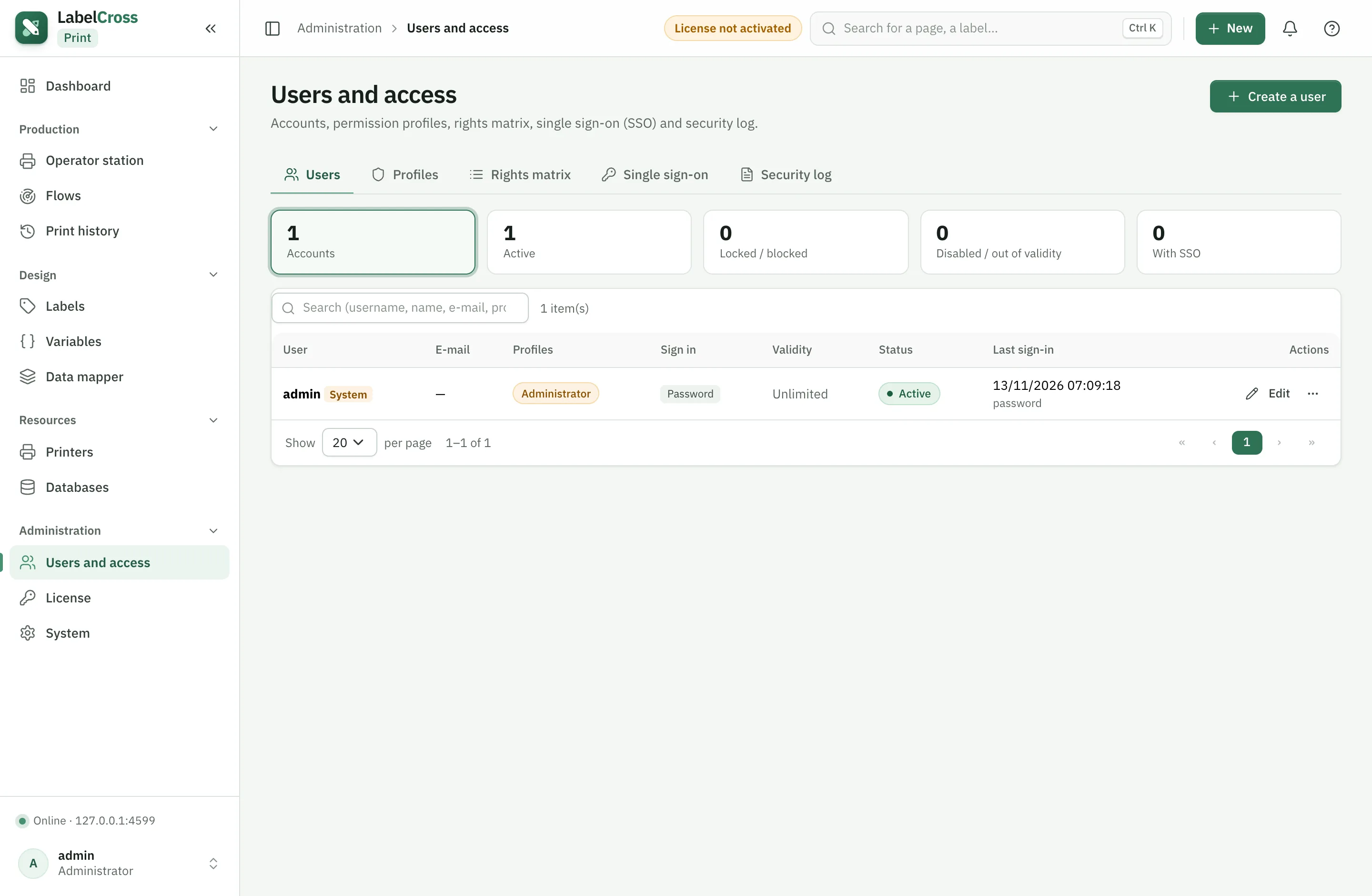
Q13How do I restrict printer access per profile (printer RBAC)?›
- Give each printer an Access group (Printers page, e.g. “Line 1”).
- In the profile editor, Printer access section: choose All printers or Limit to certain groups, then tick the allowed groups.
- Users of that profile then only see and use those printers, everywhere (list, flows, operator station, printing).
Q14How do I configure single sign-on (SSO)?›
- Administration › Users and access › Single sign-on.
- Declare your provider (OIDC/OAuth): URL, client id, secret, and the profile mapping.
- Enable, then test sign-in from the login page.
License & deployment
License activation and installation.
Q15How do I activate the license?›
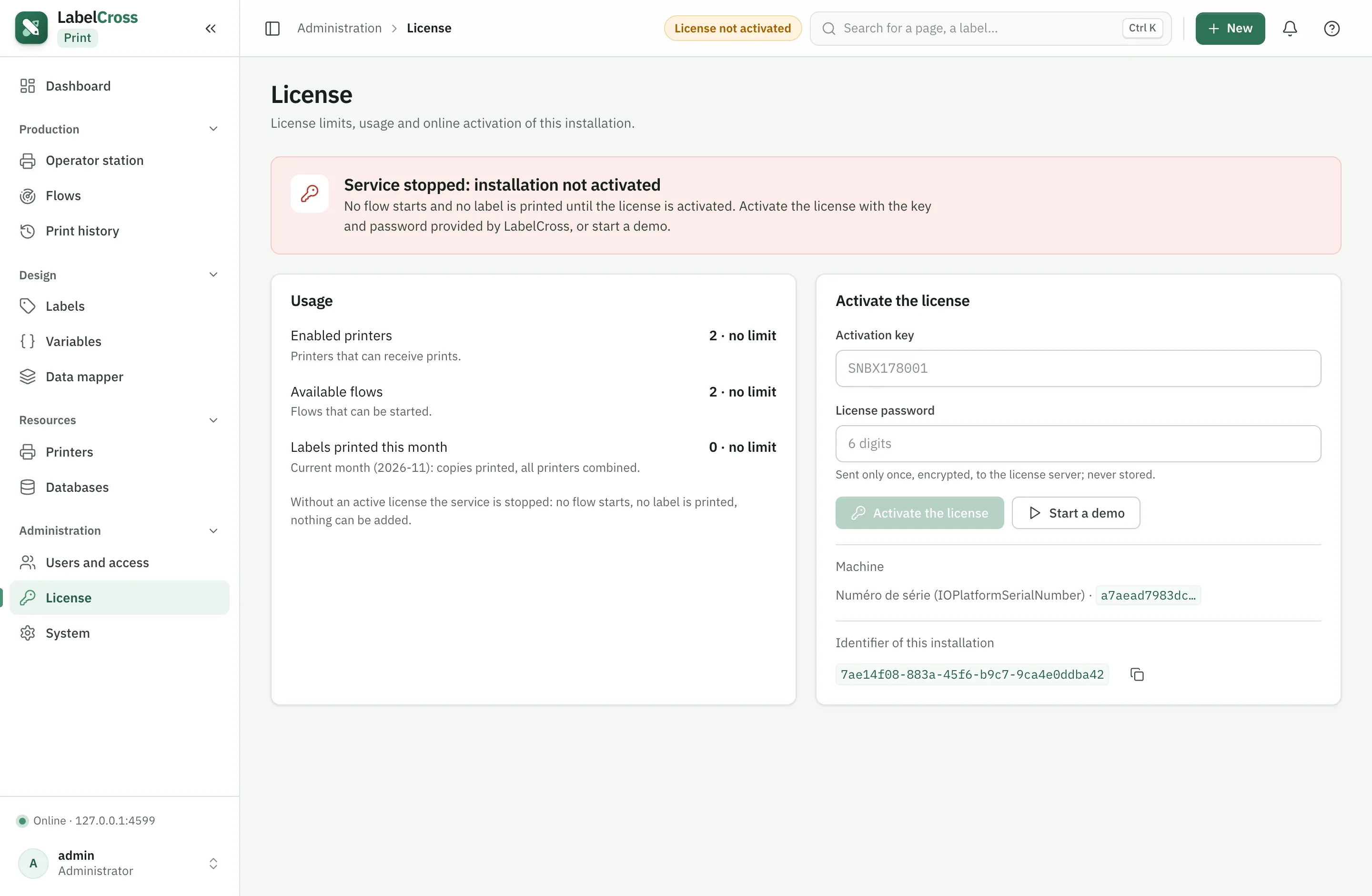
- Go to Administration › License.
- Activate license: enter your license key and password.
- Activation binds the license to the machine’s serial number and unlocks the service.
- No internet to try it out? Start a demo (reduced limits).
Q16How do I install as a Windows service and change the web port?›
- Run the .exe installer: it installs a Windows service (auto-start) with embedded Java.
- During install, choose the web server port (4505 by default); a firewall rule is added.
- The interface is then available at http://localhost:<port>/.
Q17How do I back up and restore the configuration?›
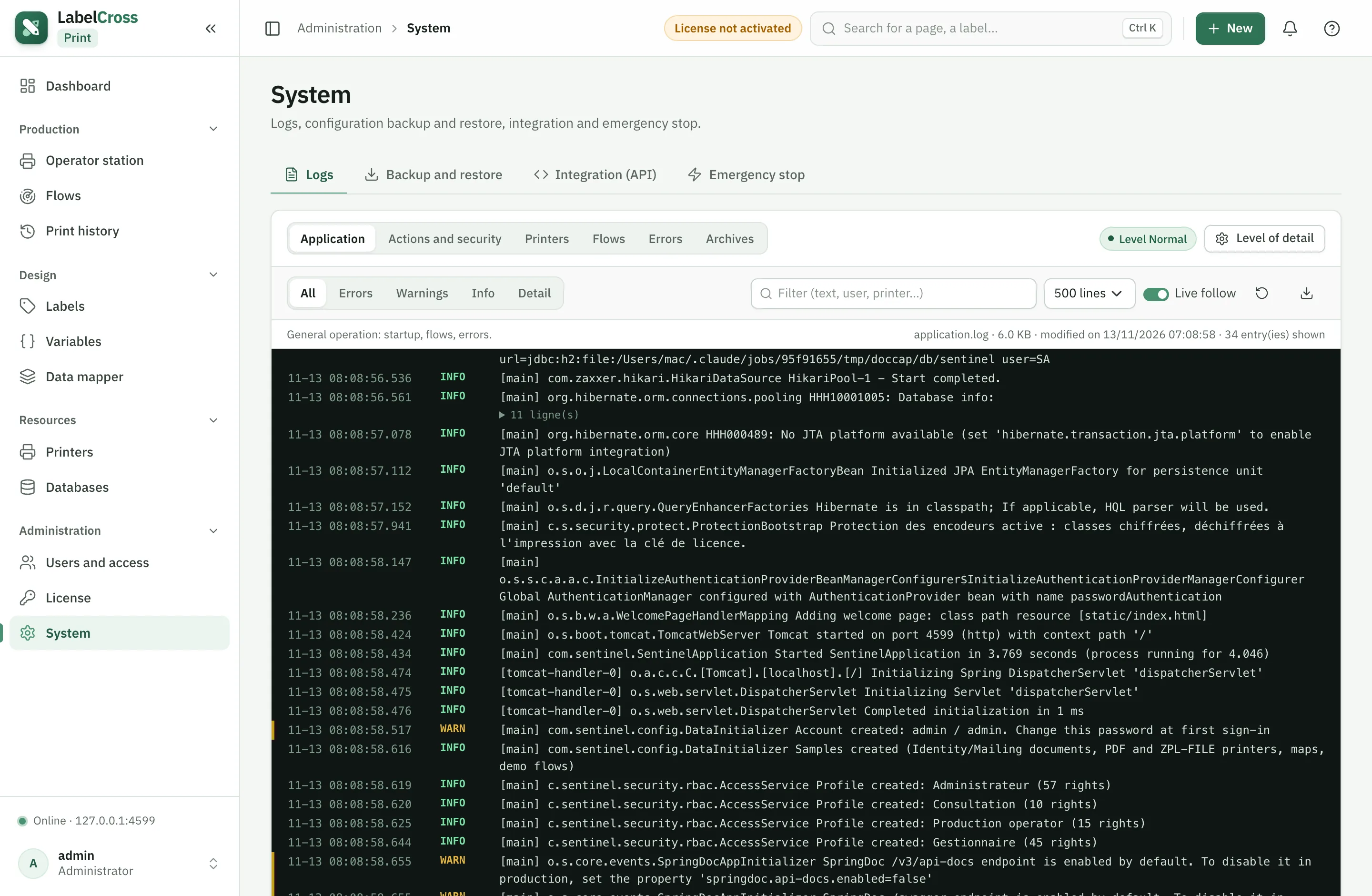
- Administration › System › Backup and restore.
- Encrypted backup: export the full configuration (password-protected).
- Restore: import a backup — it replaces the current configuration.
Troubleshooting
The most common issues and how to fix them.
P1The operator station shows no printers›
A printer only appears on the operator station if all of these are true. Check them in order:
- The printer is enabled and is not a PDF output.
- It is attached to exactly one flow (a single assignment), via a file/web/TCP input.
- That flow has a single printing processing step and is started (running).
- Your profile has access to that printer (access group — see Q13) and the Access the operator station permission.
P2Printing fails or “timeout”›
- Check the printer IP:port (General tab) and that it is powered on / on the network.
- Test network reachability (ping, port 9100 open, no blocking firewall).
- Increase the Print timeout if needed (General tab, default 30 s).
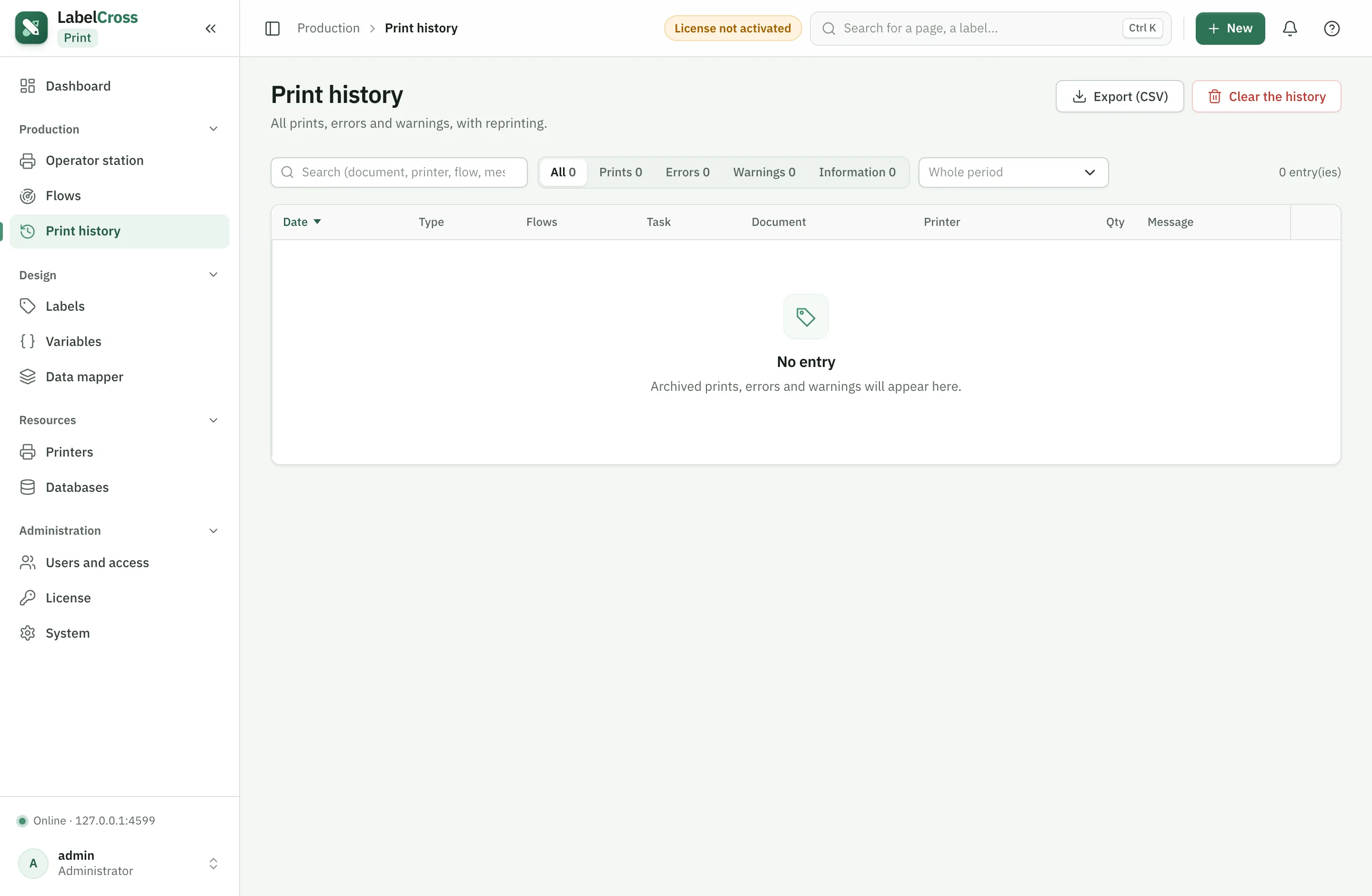
- Check Production › Print history for the exact error message.
P3“Connection refused” to a TCP/IP printer›
- The printer is not listening on the given port (often 9100): check its network settings.
- Another application or flow already holds the connection.
- A firewall/VLAN blocks traffic between the server and the printer.
P4“Invalid barcode data” / printing is refused›
The strict pre-print check (recommended) refuses sending if a value is incorrect.
- Wrong check digit (EAN/UPC), invalid length or characters not allowed by the symbology.
- A text overflows its box or an object falls outside the label.
Fix the source data or the layout. The exact message is in the print history.
P5“Service stopped: no active license”›
Without a valid license, the service is stopped (no flow runs).
- Go to Administration › License and check the status.
- Activate (or re-activate) the license, or start a demo.
- Possible causes: expired or revoked license, clock moved backwards, or bound to another machine (installation copied).
P6The printed label differs from the preview (Fingerprint/DPL)›
- Open the printer and run Image method diagnostic.
- Several labels titled “METHOD n” are printed, each with a different image-send method.
- Spot the one identical to the preview and select that method in the driver.
P7Prints come out “blank” or with missing variables›
- A variable missing from the received data is printed blank (never with its default value).
- Check the mapping (do the variable names match?).
- Enable Reject empty variables (printer General tab) to block printing instead of printing blank.
P8I can’t enable a printer (license limit)›
Your license allows a maximum number of enabled printers. If the quota is reached:
- Disable an unused printer to free a slot, or
- Extend your license (more printers) with LabelCross.
P9Forgotten administrator password›
The password is stored encrypted and cannot be “recovered”. Depending on your deployment, a system administrator can reset the account via the server’s local admin tooling. Contact LabelCross if needed.